WireGuard Peer
Use a WireGuard Peer tunnel to connect a Vipilink gateway to a WireGuard server you already run, for example on a mini PC in your data center. Your users can then reach the subnets behind it.
Before you start
- A Linux machine with WireGuard in the network you want to connect.
- The subnets behind it that users should reach, for example
172.16.10.0/24.
Add the peer
- Open your network. On the gateway card, click the ... menu and choose Add Tunnel.
-
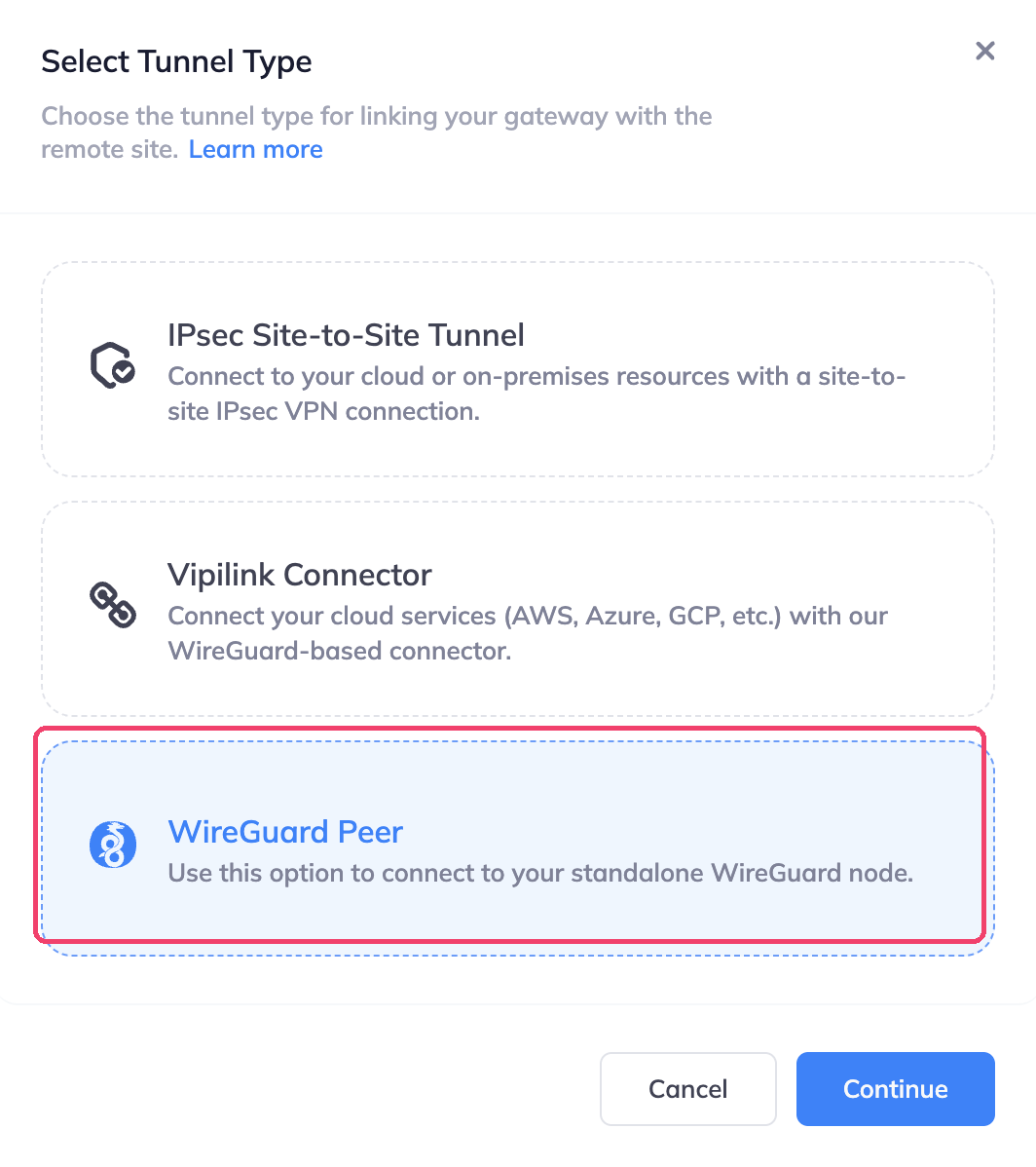
Choose WireGuard Peer and click Continue.
-
Enter a Name, for example
DCminiPC, and the Subnets behind the WireGuard node. Press Enter after each subnet. Click Continue.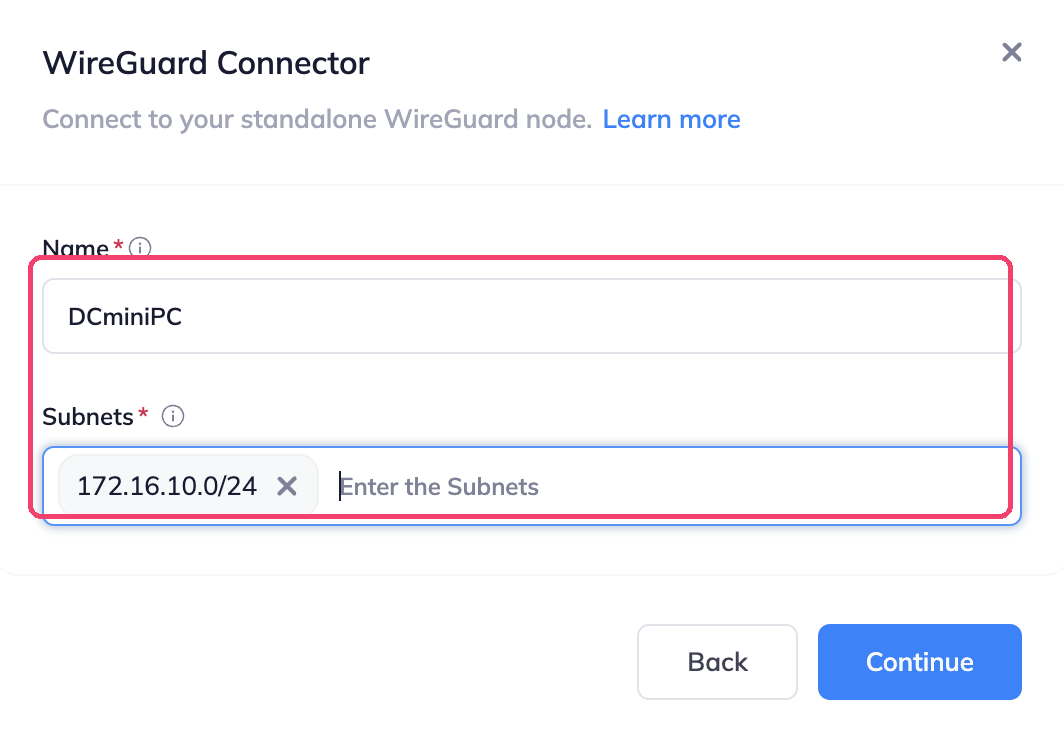
-
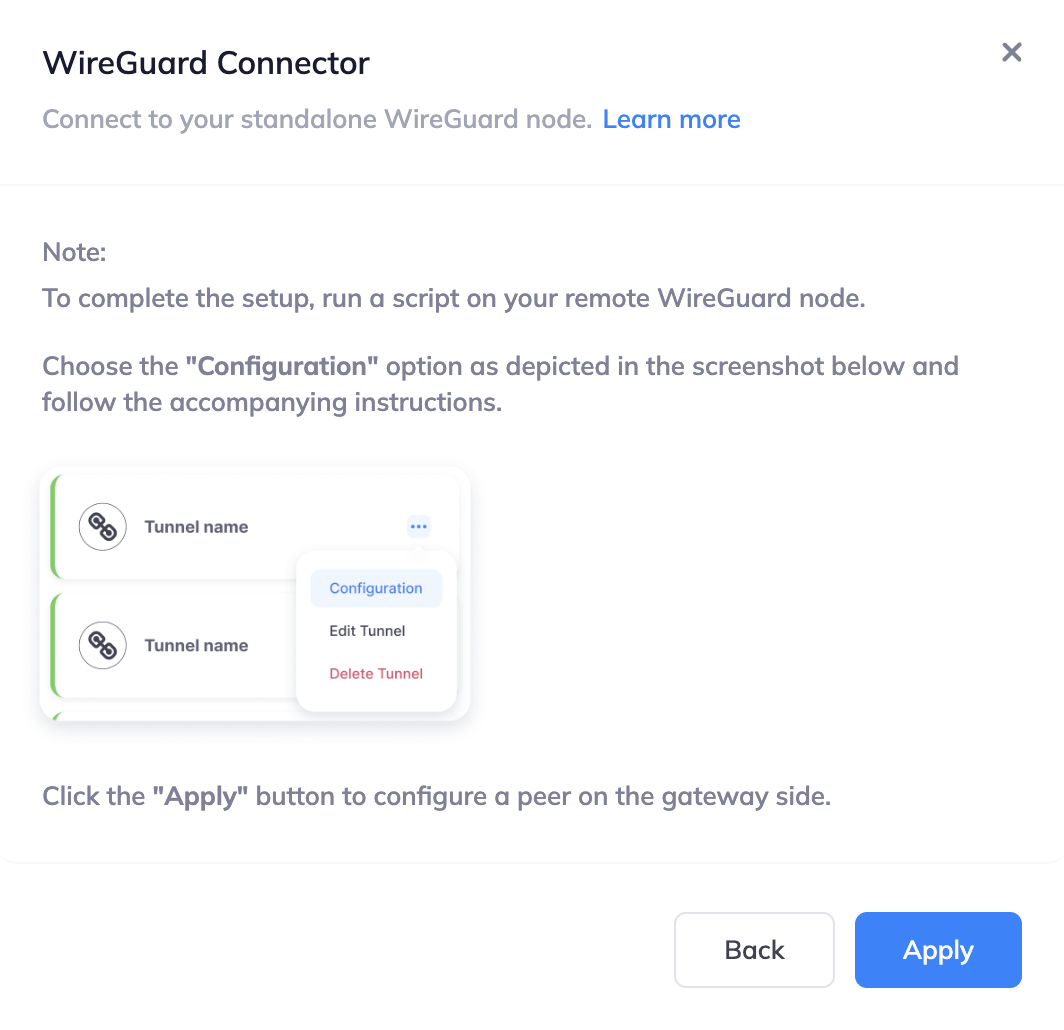
Read the note and click Apply.
-
Vipilink shows the setup command. Click Copy Command, run it on the WireGuard node with
sudorights, and click Done.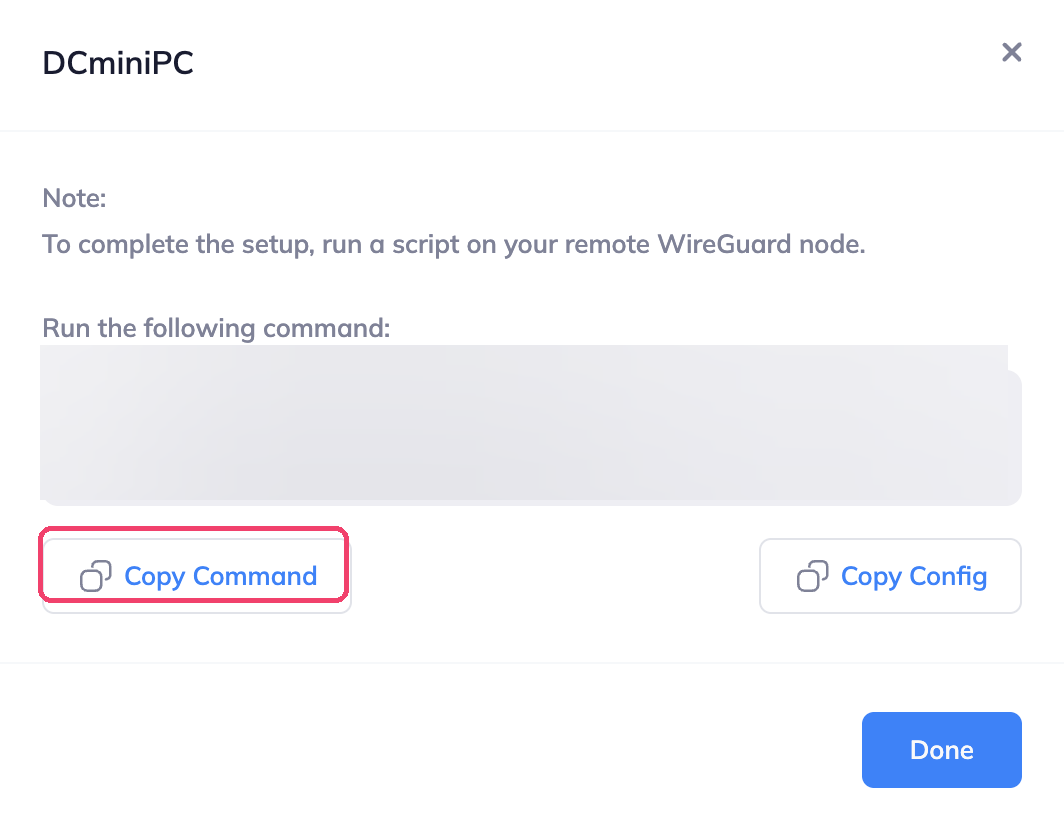
If you'd rather set up WireGuard yourself, click Copy Config instead and add the configuration to your WireGuard node.
The tunnel card changes from Down to Up once the node is connected. To see the command again later, click the ... menu on the tunnel card and choose Configuration.
Keep the command and configuration private
They contain the keys of this tunnel. Don't share them or paste them anywhere public.
Routes
Vipilink adds the subnets you entered to the network's route table. You don't add routes in Vipilink yourself. The devices in the remote subnets need a route back to your Vipilink network subnet through the WireGuard node.
Edit or delete the peer
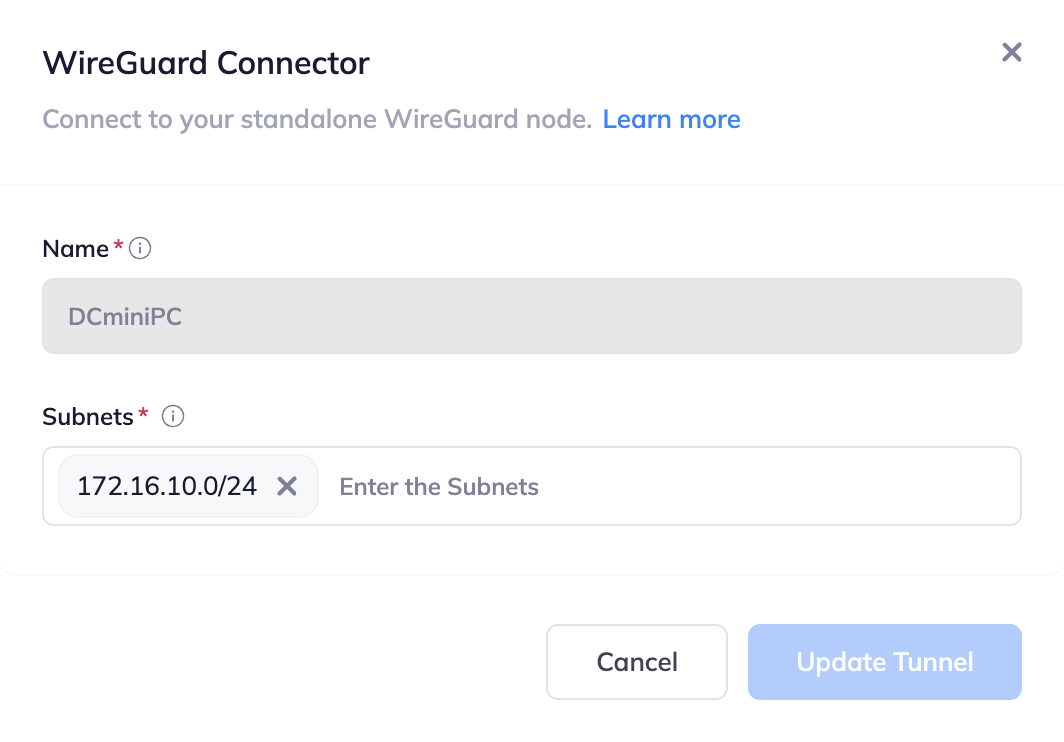
In the tunnel menu, click Edit Tunnel to change the subnets, then click Update Tunnel. The name can't be changed. Click Delete Tunnel to remove it.