Route table
The route table of a network lists the subnets users can reach through each tunnel. When a user connected to the network sends traffic to one of these subnets, the gateway sends it through that tunnel.
To open it, click the ... menu on the network card and choose Route Table.
Route types
| Type | Where it comes from |
|---|---|
| Manual | You add it yourself. Used for IPsec tunnels. |
| Propagated | Added for you from the subnets you entered when you created a Vipilink Connector or WireGuard Peer tunnel. |

Add a route
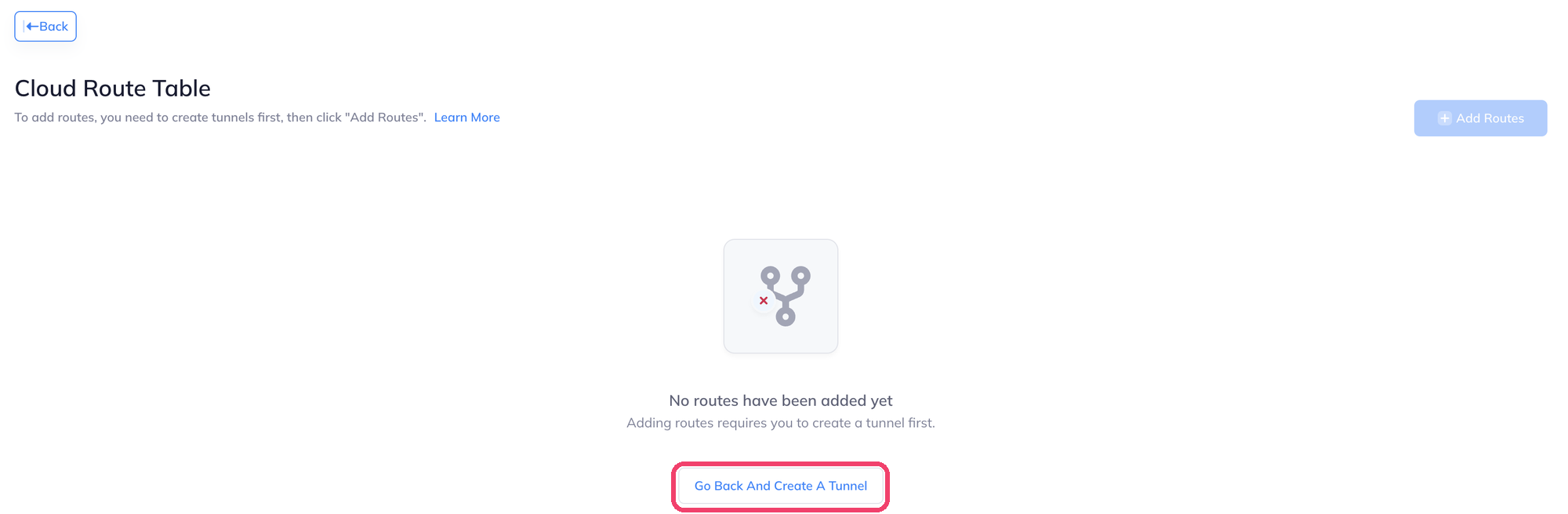
You need a tunnel first. Until the network has one, the route table is empty and Add Routes is not available. Click Go Back And Create A Tunnel to add one.
- Click Add Routes.
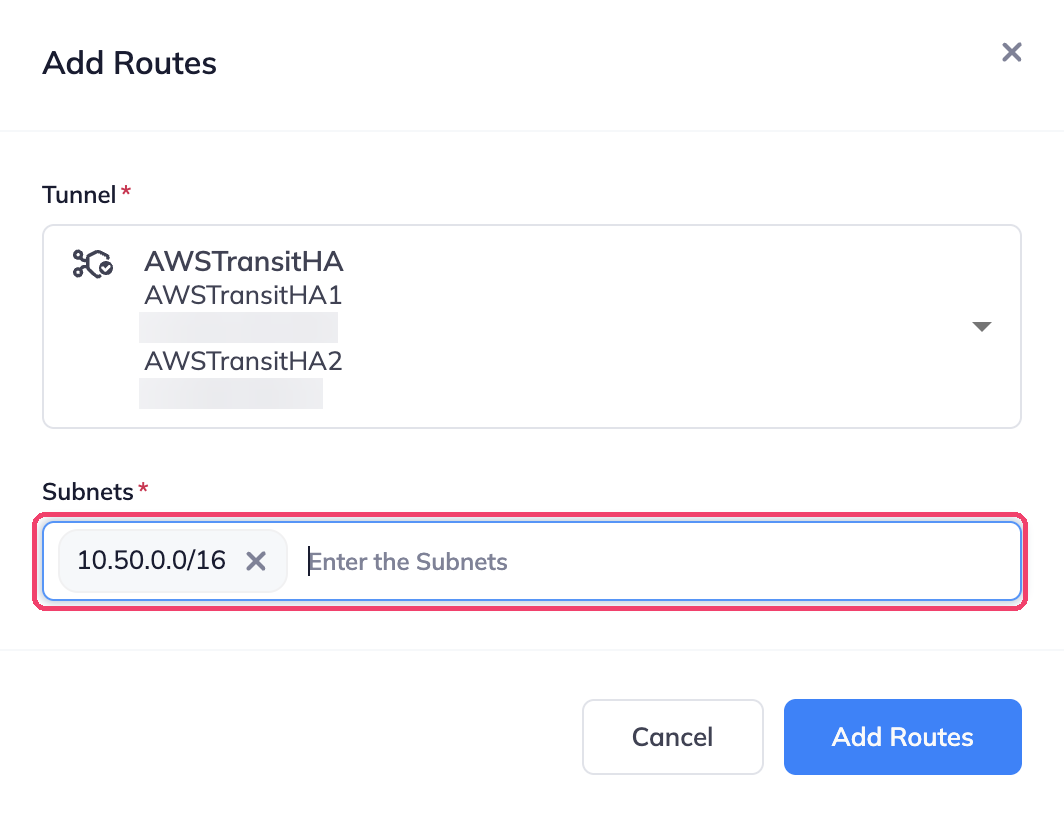
- Choose the Tunnel.
- Enter the remote Subnets, for example the CIDR of your AWS VPC. Press Enter after each one.
- Click Add Routes.
For a full example, see AWS transit gateway.
Edit or delete a route
Use the pencil or trash icon in the Actions column.
Routes on the other side
The remote network needs a route back to your Vipilink network subnet through its end of the tunnel. Without it, traffic reaches the remote side but replies don't come back.